I believe there are loads of you out there who still do not know that there is a built-in Chinese Input if you are using FW 2.0 and above.
This is very similar to what we have in FW 1.1.4 where we have to installed the WeFit appl. I have written on this back in April. See my post.
Well...If you are on FW 2.0 and above, you do not need additional app. You just need to set the following :
1) Go to Settings
2) Go to General
3) Go to Keyboard
4) Select International Keyboards
5) You will see English already ON
6) Scroll down to the bottom and select Chinese (Simplified)
7) Turn both Handwriting and PinYin to ON
Now, you can go to anywhere that allows you to input, select the Globe icon besides Spacebar
Hope this is useful for you.
Friday, October 24, 2008
Chinese Input - Setting up

Friday, September 26, 2008
Today Newspapaer in AppStore - iToday

If you are a keen reader of the TODAY newspaper that you get in the morning, you will be happy to know that they have created an app (iTODAY) and was released on the AppStore a couple of days back.
This is a great app which will allow your daily dose of news. If you refresh about 8.00 am in the morning, you will be able to get the latest news for the day. One good thing is that once you refresh, you will be able to read the news offline.
Check this out in the AppStore under Top25 free apps. You will need to register first and also verified the email. It is FREE.
Here are some related news :
http://www.channelnewsasia.com/stories/technologynews/view/370636/1/.html
Happy reading !! I love this app, keeps me updated on the go.
Friday, September 5, 2008
More Guide on WinPwn 2.5
Just realized that there is an even better guide, it covers all the features, including QuickPwn (where you only want to jailbreak your phone and nothing else)
here you go :
Guide to WinPwn 2.5
Happy pwning !!
WinPwn 2.5.0.2
Finally managed to catch some time to write something after last few weeks of escalations. These are step by step instructions on how to use WinPwn 2.5 for Microsoft Windows to unlock and jailbreak your 2.0 - 2.0.2 first generation 2G/EDGE iPhone. If you own a 3G and wish to jailbreak you could use this guide by skipping any unlocking steps and selecting 3G options rather then 2G along the way. REQUIRED: Step One 2G/EDGE 2.0.2 (2G): iPhone1,1_2.0.2_5C1_Restore.ipsw Step Three Now click to choose the iPhone 2G. Step Four Step Five Step Six Step Seven Step Eight Step Nine Step Ten Step Eleven Step Twelve Step Thirteen Step Fourteen Step Fifteen Remember the rules for them: RGB or Grayscale format with Alpha channel and dimension bellow 320×480. Step Sixteen Step Seventeen Step Eighteen Step Nineteen Step Twenty Step Twenty One Step Twenty Two You will be informed when pwnage is complete. Notice your iPhone will show a message saying, “Ready to Restore Custom IPSW”. Step Twenty Three Hold down Shift and click the Restore button in iTunes. A popup window will appear asking you to select your firmware. Select the Custom firmware file we created using WinPwn from the Pwnage folder on your Desktop then click the Open button. Your iPhone will now be restored unlocked to the jailbroken 2.0.2
After my last blog, iPhone 3G is finally released in Singapore and have seem many friends getting this new phone. For me, I will wait till StarHub comes along and hope that their pricing will be competitive or at least force Singtel to be competitive.
For those of you already on iPhone 3G and wants to jailbreak your phone (to allow to install 3rd parties apps other than from the AppStore), you will have to use WinPwn 2.5.0.2.
WinPwn will also work for 1G/2G iPhone and also supports up to the latest FW 2.02.
Here is the step by step instructions (courtesy of www.iphone-hacks.com) :
Create a folder on your desktop called Pwnage. Download and place in it Winpwn 2.5 (unzip it), bl39.bin , bl46.bin, and the latest 2.0.2 firmware file:
3G 2.0.2 (3G): iPhone1,2_2.0.2_5C1_Restore.ipsw
Step Two
Install WinPwn 2.5 by double clicking the unzipped executable. Once WinPwn has been installed it will put a shortcut icon on your desktop. Double click to launch the application. (Make sure you removed previous versions of WinPwn before installing WinPwn 2.5)
Once WinPwn is open toggle the Expert Mode switch to turn Expert Mode ON, by clicking it.

You will then be prompted to select the firmware file you would like to use. Choose the firmware file you downloaded then click the green right arrow at the bottom right of the window.
You will then be asked if you would like to unlock the iPhone. Most likely you will want to click the green thumbs up button. You don’t need to unlock if you are using a valid iPhone carrier with contract.
You will then be asked if you would like to delete BootNeuter after it completes. Most likely you will want to click the green thumbs up button.
WinPwn will now prompt whether if you want to activate your iPhone. If you are not on an official carrier then you will want to click the green thumbs up button.
You will now be prompted if you want to install YouTube activation. Again if you are not on an official carrier then you will want to click the green thumbs up button.
You will be prompted if you wish to install Cydia. Click the green thumbs up button.
Next you will be prompted if you want to install Installer 4. Click the green thumbs up button.
WinPwn will then prompt if you wish to resize the root partition. Click the green thumbs up button.
If you want to wipe data when doing the restore click the green thumbs up button. This will take longer so click the red thumbs down button, unless you want to wipe your data.
WinPwn will then prompt if you would like to use custom boot/recovery images. Click the green thumbs up button if you would like to.
You will now be prompted to set the size of your root partition. Move the slider to select a partion size of 800mb.
You will now be able to select your custom images. Click the iPhone on the left to select your boot logo. Click the iPhone on the right to select your recovery logo.
WinPwn will now prompt you to select a location to save the Custom IPSW. Navigate to the Pwnage folder you created on your desktop and click the Save button.
WinPwn will now begin searching for your ipsw firmware file. If it cannot find it you will be asked to browse manually. Click the green thumbs up button then navigate to the Pwnage folder on your desktop and choose the ipsw you downloaded in Step One.
WinPwn will now begin building your custom ipsw.
WinPwn will then prompt you to connect your iPhone via USB and make sure its turned off. Do this then click the green thumbs up button.
WinPwn will then say its ready to start Pwnage. Click the green OK button.
The timing in this step is crucial make sure you to follow the instructions perfectly. It will prompt you to hold the home button and the power button for 10 seconds (simultaneously). Then, you will have to release the power button while still holding the home button for 10 seconds to enter DFU Mode.


Once you iPhone is in DFU mode WinPwn will begin the pwnage process.


iTunes will now prompt you that you are in recovery mode.


Saturday, August 2, 2008
WINPWN is still GOOD
Since my last post on xWinPwn, WinPwn has come up with a new version WinPwn 2.003. This is a much better version and resolve a lot of bugs and errors we encountered especially the 16xx error codes.
I will be doing a disservice to the WinPwn Development team if I did not test this new version. Indeed, I have tested pwning two 2G iphones (8gb and 16 gb model) and both went through without a hitch. No errors. So, this version 2.003 is good and ready to go. The Dev team has also announced that there will be a new version 2.5 coming out soon which will made the jailbreaking even more automated and easier. So watch out for this.
For those who have used either xWinPwn or WinPwn to jailbreak and unlock, you will then be asked if you intend to restore from a backup of your stuff from itunes. My suggestion is not to restore, as I have encountered my apps eg. MAIL not working after the restore and you will have to go down to the file level using terminal to fix the ownership issue. Since you have just upgraded, you might as well start everything fresh, just sync with your outlook to get back all your contacts (which is the most important part !!!)
Note : There is a new version of iTunes 7.7.1.11 You may proceed to upgrade to this version. It has no impact to your already jailbroken iPhone.
Friday, July 25, 2008
XWinPwn vs WinPwn - Winner is......
Well, yesterday I wrote about WinPwn 2.0 been released and I was going to try upgrading my 1.1.4 to 2.0. I tried today using WinPwn 2.0 and spent the best of the afternoon understanding and finally taking the plunge....only to encounter error 1600/1601 at the critical stage of upgrading the firmware. I thought that it would hang up my whole phone and make it unusable.
I spent almost three hrs trying WinPwn and was almost giving up when I chance about XWinPwn. A French boy (yes BOY..15 years old) wrote this using VB and release this before WinPwn 2.0. I was hesitant about using it but I still took the plunge.
It was easier than I had thought and was so much smoother and easier than WinPwn. The whole process of pwning it took about 15-20 mins only and I was up and running with v.2.0 on my 2G iPhone already. I am very glad and happy. So far all apps is working fine - jailbroken and unlocked. I was able to download apps from the App Store as well.
The WINNER is : XWinPwn..hands down
Here is how you go about upgrading it :
Prework :
1) download the v2.0 firmware for 1G/2G iPhone first. Don't choose the wrong FW.
2) Ensure your itunes is the latest ver (7.7)
3) Download xWinPwn
4) Install xWinPwn. Note the folder it is installed to.
5) Copy the 2.0 firmware you downloaded in step 1 to the same folder as step 4.
Upgrading :
1) Open xpwn.exe
2) Under 2G iphone, select "1. Create custom IPSW"
3) A terminal should appear and start building the ipsw
4) When the terminal disappears, click on "2. Start Pwnage" and follow the instructions on screen from here. The instructions are very clear and will advice you when to start itunes, when you connect your iphone, when to start DFU mode etc....
5) Once started, it will take about 15 - 20 mins before the whole upgrading completes
6) You are on Ver 2.0 NOW !!! Enjoy
If you have any issues, you may check back with me or comments in here. Good Luck !!
Thursday, July 24, 2008
WinPwn 2.0 - Jailbreak and Unlock your iPhone
It's finally here !! The Windows version of Pwnage tha will allow you to jailbreak and unlock your current 1G iphone to firmware 2.0. For those of you who have the 3G iphone, it will currently only allow you to jailbreak but not unlock.
For more info, check out : WinPwn 2.0
I am going to try and upgrade my 1.1.4 iphone over the weekend. Wish me luck !! Lots of it.
Pls note that a lot of the Installer Apps that you are used to is still not available if you upgrade now...just that you can use all the new features of FW 2.0 eg. push mail etc and also AppStore.
Stay Tune......Watch this space over the next few days for updates.
Tuesday, July 8, 2008
Top 5 Reasons
Well, we are now 3 days away from the official launch of iPhone 3G and firmware 2.0 Are we ready for this? For those in Singapore, you will have to wait a little longer...perhaps in another 2 months.
To prep you for this moment, I have read several articles on the net recently that are of interests for pros and cons of owning an iphone. here you go, happy reading :-
1. Top 5 Reasons I’m SO Upgrading to iPhone 3G
2. 5 reasons to hold off on the iPhone 3G
3. 5 Reasons NOT To Buy The 3G iPhone
4. 5 Reasons to Buy the Apple iPhone 3G
5. Ha Ha...I only can find 4 of the good articles...next post will be on the AT&T price plans....
Thursday, June 12, 2008
iPhone 3G vs iPhone
So, iPhone 3G is officially announced but you can only get it together with a contract with one of the official carriers. Looks like I will stick to my first generation 16GB iphone. It has been good and still is and I actually don't have a need for 3G or the GPS.
For those of you who like me who do not need 3G or GPS, first generation iPhone works just fine. We just have to wait till June 27 or so, when iPhone 2.0 and App store is released by Apple and patiently wait for someone out there to break the code.
Like someone mentioned in recent news, Apple iPhone strategy is more on the software rather than the hardware. iPhone 2.0 and the new SDK is really the key to iPhone success.
Although I wont be queuing up for the iPhone 3G, I will still be recommending to all my friends and those who are reading my blog to get one if you have not, it is now so much more affordable than any smartphone in the market.
Wednesday, June 4, 2008
Tribal Game
Well....haven't been posting for a while..cause there isn't much new things that interest me..except for this new game : Tribal from the www.ispazio.net source.
This game involves using your fingers to hit some targets on the screen and it involves some good hand-eye co-ordination. Three levels of difficulty and good graphics.
Try and beat my record :
Easy - 6217
Medium - 4407
Hard - 8370
Until next Monday...when we see what Steve Jobs has to announce....cheers
Sunday, May 18, 2008
iPhone Video Recorder
If you are looking for a video recorder on the iPhone, this is it. A full-fledged app that allows you to choose how you want the format to be : best picture, best in size etc. This app is easy to use and is currently on ver 1.2.2 This is a much better app than ShowTime.
The unlicenced version will allow you to record up to 30 secs of video...however, someone out there has a "special" version. You may want to check it out at : http://repo.cnpda.com.cn
You can add this into your installer source.
Friday, May 9, 2008
Great iPhone Blog site
Was browsing the web and came upon this blog on iphone. Interesting site with loads of tips and tricks and also "crack" versions of some apps.
Worth checking it out. I will be adding it into my links as well.
Here you go : http://www.downloadmyiphone.blogspot.com
Thursday, May 1, 2008
May Day Updates - We Mahjong is here !!!
Well, its May day today and I was wondering what to write when I chance upon this new app from the WeiPhone folks. Its Mahjong !! Yes, the one we play with four people !!
I have read about it a couple of weeks back and was anticipating it. Finally, its here. You can find it from the WeiPhone source : http://app.weiphone.com/installer
The app name is : WeMJ
Here are some snapshots for you. Enjoy !!!


Friday, April 18, 2008
Settings for Broadband on Mobile in Singapore
I would like to thank Eric for providing the following info on settings for Broadband on Mobile for the 3 service providers in Singapore. This is through the EDGE settings. I know Eric has tested with the Starhub broadband. If you have tested the other two, do let us know or post a comment here. Thanks.
Here you go :
StarHub:
GPRS APN: shwapint
Username: {blank}
Password: {blank}
DNS: 203.116.1.78, 203.116.254.150
Singtel:
GPRS APN: internet
Username: {blank}
Password: {blank}
DNS: 203.116.1.78, 203.116.254.150
M1:
GPRS APN: mobilenet
Username: {blank}
Password: {blank}
DNS: 165.21.100.88, 165.21.83.88
Updates to converting MP3 to Ringtones
For those of you who have previously read my blog entry on converting MP3 into ringtones, there have been quite a number of version updates to this app from http://i.danstaface.net
The current version is already is ver 2.84 and has many many new and wonderful features. You know this developer really works and also thanks to a 'big' doner who sponsor his development work. I have tested this on my 1.1.4 firmware and is working.
Some of the key features of this version:
- No conversion is needed to use MP3 as the ringtone (a reboot might be needed) - direct ringtones
- You can still opt to convert if you want...(it does take a bit of time converting though)
- It advices you of the space you have left in both partitions (in case you do not know you have two partitions..read my blog entry)
Chinese Handwriting Recognition
TGIF !!! It's time for my weekly blog. Let me tell you...blogging is a great way to relieve your stress away from work and focus on something different. I hope you enjoy reading as much as I enjoyed writing.
Last night, while waiting for my wife to come back from work (she's been working till 11+ for the past few nights..sigh), I was browsing AppleiPhoneSchool on my iphone, i read up a recommendation on a handwriting app. This web site is a great place to visit regularly, it really goes through the many apps that were release on installer and recommends them.
This app is call : HWPen and is available from the iphone Cake source.
The source address : http://iphonecake.com/src/all
Once you install it from the installer, you will activate it from anytime you need to enter info through the keyboard. This is great for those of you who prefers to write in Chinese rather than PinYin. You use your fingers to scribble on the screen. The word recognition is really good and I reckon it is at least 95% correct most of the time in trying to decipher what I am writing.
This is one of the better apps I have seen and it is still in Beta. One work to describe it : Outstanding !!!


Friday, April 11, 2008
New Tools, Games, Utilities from Installer
Saw a couple of new things in the installer that could interest you :
Snapture is somewhat like CameraPro but I feel that it is much better. It has zoom features, black and White photo feature, burst mode, timer etc. It also allows you to snap using the voulume control or tap anywhere on the screen. Snapture is available through the BigBoss source. and....this is FREE.
Sudoku : For those of you who likes this, you can get this from the Weiphone source. Great app, but you need to be able to read Chinese as the menu items are in Chinese.
Pocket Guitar is also finally able to run on firmware 1.1.4
300 MB Limit on iPhone
Have you ever wondered why sometimes you get the message that you are running out of space even though you still have loads on your 16 GB or 8GB? Or sometimes, after installing an application, the icon isn't there or it doesn't work properly....most of this is due to the fact that one of your partitions on your iPhone is either nearly full or full.
The iPhone has two disk partitions. The smaller one is 300MB and is used for OS contents. The larger one is for media and others. Whenever you install applications, it is actually installing on the 300 MB OS partitions. Very soon....it gets filled up.
You either have to uninstall unused applications or you can move them to the bigger partitions. If you are good at UNIX, you can terminal into your iPhone and put some commands to do this. However, someone out there already has written a great tool to do just this.
BOSS TOOLS allows you to move ringtones, fonts and applications to the larger partitions.
It also allows you to see how much space you have left now. You can get this from the installer.
Here is also the tutorial link from the iClarified site I mentioned in the previous post :
How to Free Space on Your iPhone Root File System
P/S : Do it with care. test out with fonts and ringtones first before applications. If you have enough space, don't move the applications.
Friday, April 4, 2008
Great Tutorials for iPhone
Found this very good website that covers that has very good tutorials on almost anything for the iphone. This way, I don't have to re-invent the wheel.
Check it out : http://www.iclarified.com/tutorials/iphone/index.php
Some of the good tutorials :
- How to Patch AppSupport for 1.1.4 iPhones (Installer)
- How to Make Your iPhone a Playstation Emulator
- How to Copy Contacts From Your SIM Card to Your iPhone
- How to Send Files from One iPhone to Another
- How to Backup Your iPhone With TimeCapsule
- How to Install a SummerBoard Theme
- How to Make iPhone SMS Alert Vibrate Longer
SSH and WinSCP
These two tools are very useful on the iPhone. Do install them as you will need them if you need to be able to transfer files from your computer to the iphone esp copying Summerboard themes.
SSH - You can install OpenSSH from Installer. I also recommend that you install BossPrefs as well as this will allow you to turn on/off SSH (most of the time, you want if OFF !!)
WinSCP - This is to be install on your PC/Notebook. You can download this from : http://winscp.net/eng/download.php
What is WinSCP?
WinSCP (Windows Secure copy) is an open source SFTP and FTP client for Microsoft Windows. Its main function is secure file transfer between a local and a remote computer. Beyond this, WinSCP offers basic file manager functionality. For secure transfers, it uses Secure Shell (SSH) and supports the legacy SCP protocol in addition to SFTP.
(Definition taken from http://en.wikipedia.org/wiki/WinSCP)
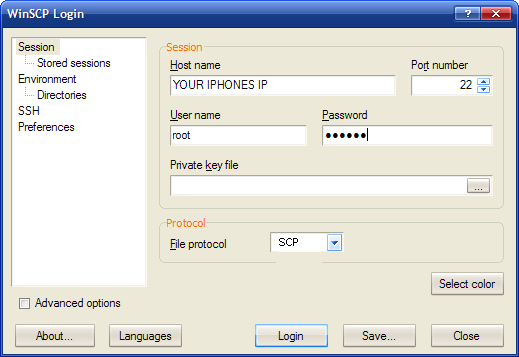
Basically, the interface is like windows explorer whereby on the left panel, it's the directories you have on the iPhone, on the right are the files available in the parent/sub directories. Looks something like the picture below
How do you do a login to your iPhone with WinSCP
Converting MP3 into Ringtones
It's been a very busy week....both at work and on the iPhone :) I will try and post as many things as possible today.
1st up : Converting your favourite MP3 into call ringtone to SMS ringtone. I have tested two apps recently. Both works but very differently. One of them requires you to install an application on your PC, converts the MP3 and then syncs it into the iphone. It works but is very cumbersome. The better way is to convert it directly in the iPhone. Well, here you go :
Ringtones v 2.72 runs as an app on the iPhone and will convert your MP3s into either call ringtones or SMS ringtones. Here are the features :
- Either convert from your music library or through the microphone
- Allows to convert into Call Ringtones or SMS Ringtones
- Quick conversion and Advance conversion
- Allows full song or part of the song (U decide where to start and end)
- Allows fade in and fade out
- Has a preview before you convert
To install this, add the following into your installer source : http:\\i.danstaface.net
You should then be able to find it under Category : Multimedia
For more info, pls do visit their web page at : http://i.danstaface.net/site/
Happy converting...Note : the conversion could take more than 5 mins depending on the length of your MP3.
Friday, March 28, 2008
Chinese Input - HanYu PingYin
Some of you have been asking me about how to get the Chinese input working. Here you go :
First, you will need to add this source : http://app.weiphone.com/installer into the installer app. Start off Installer, tap on Sources, Edit, then Add.
Once you have added, you can go to install, under Weiphone Category, you will see this app : WeFit 1.0.0
Tap to install this. After installing, you will need to power off your iphone and on again for the WeFit to be activated.
You will see a Wefit icon. You won't need to change anything here unless you are not using PingYin.
How to input? Go to SMS or Notes, once your keypad is up, you will see besides the spacebar, a globe icon, tap on this to switch between Chinese input and English.
Note : if you do not have BSD Subsystem 2.1 installed previously, you will need this first before installing WeFit. Good Luck. Let me know if it doesn't work for you.
Monday, March 24, 2008
Speakers, Earphones
If you are like me who loves music and watching videos, you would know that the earphone that comes with the iphone 'sucks'. It lacks treble and bass. BUT, I cannot afford the expensive Bang & Olufsen earphones. They are almost 1/4 of the cost of the iphone !!! Well, I am not here to sell anything but rather what I have experience and bought.
I was browsing around at Challenger store and saw this very nice earphone from iLuv and it states on the cover that it is made for the ipod/iphone and the price is affordable (S$ 35). I wasn't disappointed at all. It is indeed many times better than what comes with the iphone. The jack is thinner and suitable for the iphone, as I found out that my other Sony earphone that could fit into a ipod mini could not fit into the iphone. Try it and you will love it. Very stylish and sleek in the design, with several colours to match.
I also like to go outdoors quite a bit. With the iphone, I no longer need to lug along a mini system anymore. I have all the songs and videos to watch and share with friends. The problem is that the built-in speaker is suitable for in-door use. Once outdoors, it is hardly audible.
Found this ad on the papers 2 weeks back on a portable capsule speaker that is very small yet packs a punch. I decided to get one. Guess what, I demonstrated this to several of my friends and they were all surprised that such a small speaker could produce such a great sound in an outdoor environment. You have to hear it to believe it.
 For the price (about S$ 38), it is value for money.
It has a built-in rechargeable battery and connects through USB and normal phonejack.
Their tag line "Sound beyond Size" really is true.
Check the review of this amazing product.
Friday, March 21, 2008
In the Beginning
I decided to write this blog so I can share my experiences with my friends as they have been asking me how I get this and that.....
To start off, I got a 8gb iphone several weeks back and was so fascinated by it that I quickly upgraded to a 16gb model as I feel I will need the 'extra spaces' very soon with all the capabilities this phone has. Current firmware version I am using is still 1.1.3 although I had previously used 1.1.4 on the 8gb.
Didn't see any problem with ver 1.1.4 except that some 3rd party apps might not work yet !!
For starters, I would suggest that you go to My Favourite Links to explore some of my favourite iPhone links. These are where I have gain a lot of info and downloaded loads of stuff as well.
Appple iPhone School - great site to start. It has some videos of basic usage, covers most of the 3rd party Apps out there, lots of other sources for the installer.app...you could spent hrs here
China Daily iPhone - Found this site which has very nice Themes for Summerboard
Modify my iFone - Loads of good stuff, great forum and help
Subscribe to:
Comments (Atom)

