Friday, April 4, 2008

Great Tutorials for iPhone

Found this very good website that covers that has very good tutorials on almost anything for the iphone. This way, I don't have to re-invent the wheel.
Check it out : http://www.iclarified.com/tutorials/iphone/index.php

Some of the good tutorials :

SSH and WinSCP

These two tools are very useful on the iPhone. Do install them as you will need them if you need to be able to transfer files from your computer to the iphone esp copying Summerboard themes.

SSH - You can install OpenSSH from Installer. I also recommend that you install BossPrefs as well as this will allow you to turn on/off SSH (most of the time, you want if OFF !!)

WinSCP - This is to be install on your PC/Notebook. You can download this from : http://winscp.net/eng/download.php

What is WinSCP?

WinSCP (Windows Secure copy) is an open source SFTP and FTP client for Microsoft Windows. Its main function is secure file transfer between a local and a remote computer. Beyond this, WinSCP offers basic file manager functionality. For secure transfers, it uses Secure Shell (SSH) and supports the legacy SCP protocol in addition to SFTP.
(Definition taken from http://en.wikipedia.org/wiki/WinSCP)

Basically, the interface is like windows explorer whereby on the left panel, it's the directories you have on the iPhone, on the right are the files available in the parent/sub directories. Looks something like the picture below


How do you do a login to your iPhone with WinSCP

  • Have WinSCP installed
  • Make sure you have OpenSSH installed from Installer (can be found under the System Category)
  • On Wifi, and let your iPhone connect to your house's Wifi Connection
  • You will be able to trace out the Ip that your iPhone is on, it looks something like this below
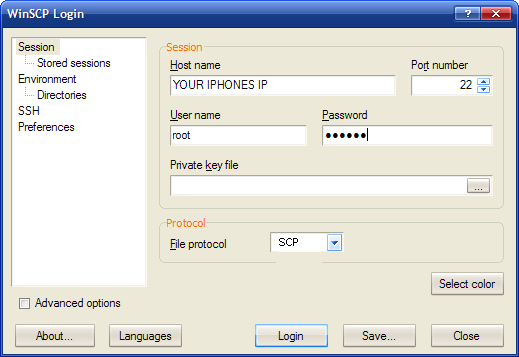
  • Once done, open winSCP, you will have a login screen like the one u see below
  • Key in the phone's ip into the "Host Name" Field
  • Port No remains as 22
  • User name is root ... (for 1.02 the pword is dottie, for 1.1.1 and above, it's alpine)
  • Once done, click login and give it a while ... once it login successfully, you should see something like the FIRST picture i've posted up.


Converting MP3 into Ringtones

It's been a very busy week....both at work and on the iPhone :) I will try and post as many things as possible today.

1st up : Converting your favourite MP3 into call ringtone to SMS ringtone. I have tested two apps recently. Both works but very differently. One of them requires you to install an application on your PC, converts the MP3 and then syncs it into the iphone. It works but is very cumbersome. The better way is to convert it directly in the iPhone. Well, here you go :

Ringtones v 2.72 runs as an app on the iPhone and will convert your MP3s into either call ringtones or SMS ringtones. Here are the features :

  • Either convert from your music library or through the microphone
  • Allows to convert into Call Ringtones or SMS Ringtones
  • Quick conversion and Advance conversion
  • Allows full song or part of the song (U decide where to start and end)
  • Allows fade in and fade out
  • Has a preview before you convert
I have tested this on 1.1.4 firmware but I understand that for firmware 1.1.3, you might need to install other software as well. You will also need BSD Subsystem for all firmwares.

To install this, add the following into your installer source : http:\\i.danstaface.net

You should then be able to find it under Category : Multimedia

For more info, pls do visit their web page at : http://i.danstaface.net/site/

Happy converting...Note : the conversion could take more than 5 mins depending on the length of your MP3.